
A laptop is one of the most expensive tools most people own, and it is also the one that gets tossed in a bag, left in a car and used on the couch. The good news: a few simple habits can add years to its life. Here is how to store your laptop the right way, and the everyday steps our technicians recommend to keep it running fast.
How to Store Your Laptop the Right Way
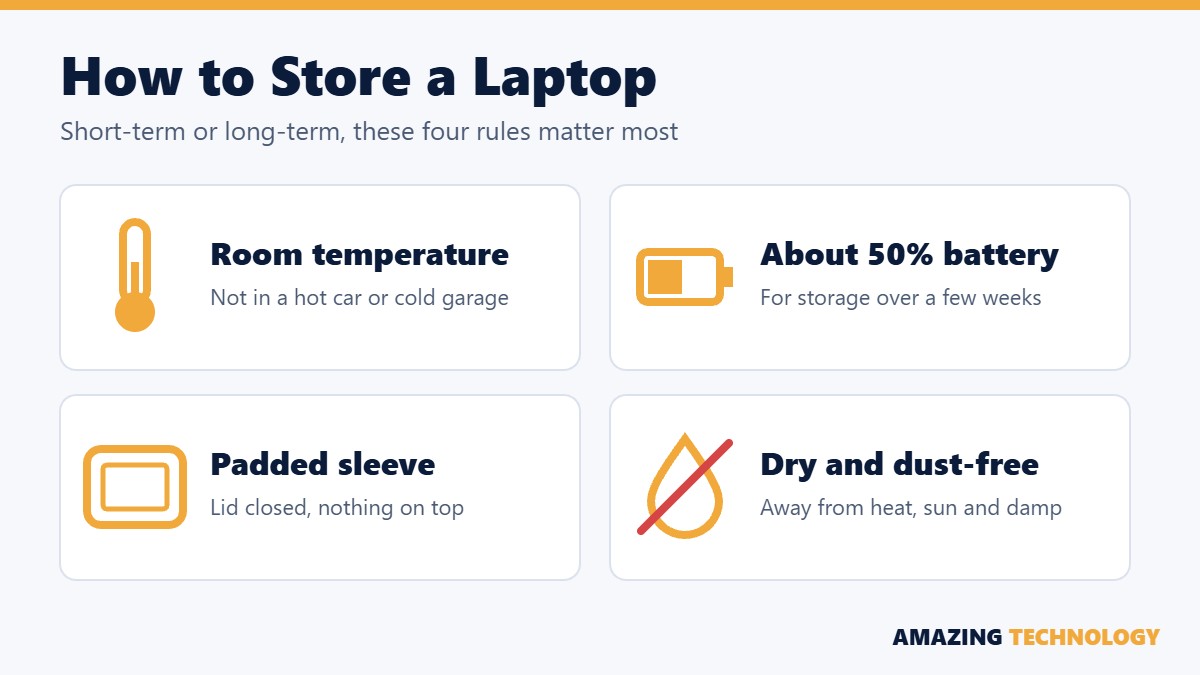
1. Keep it at room temperature
Heat is the number one enemy of laptop batteries and electronics. Never leave a laptop in a hot car, an attic or a sunny window, and avoid freezing garages and sheds in winter. A closet or desk drawer inside your home is ideal. If your laptop has been out in the cold, let it warm up to room temperature for an hour before you turn it on, so condensation does not form inside.
2. Store it with about half a charge
If you are putting a laptop away for more than a few weeks, charge or drain the battery to around 50%, then shut it down completely. Do not store it at 100% or completely empty. A fully drained battery can drop so low it will not charge again, and a full one ages faster. For long-term storage, top it back up to about half every few months.
3. Use a padded sleeve and keep the lid clear
Store the laptop closed, in a padded sleeve or case, lying flat or standing upright. Never stack books or other devices on the lid. Pressure on the lid is a common cause of cracked screens and pressure marks. Remove USB drives, dongles and discs before storing it.
4. Keep it cool, dry and dust-free
Humidity and dust do slow, quiet damage. Avoid basements and bathrooms, keep it away from heating vents, and if you live near the water like we do in Hampton Roads, a small silica gel pack in the case helps absorb moisture.
Never put it in a bag while it is still on
Closing the lid does not always mean the laptop is off. A laptop that wakes up or keeps running inside a backpack has no airflow and can overheat quickly. Shut it down, or make sure it is fully asleep, before you bag it.
8 Ways to Extend the Life of Your Laptop
1. Charge smarter
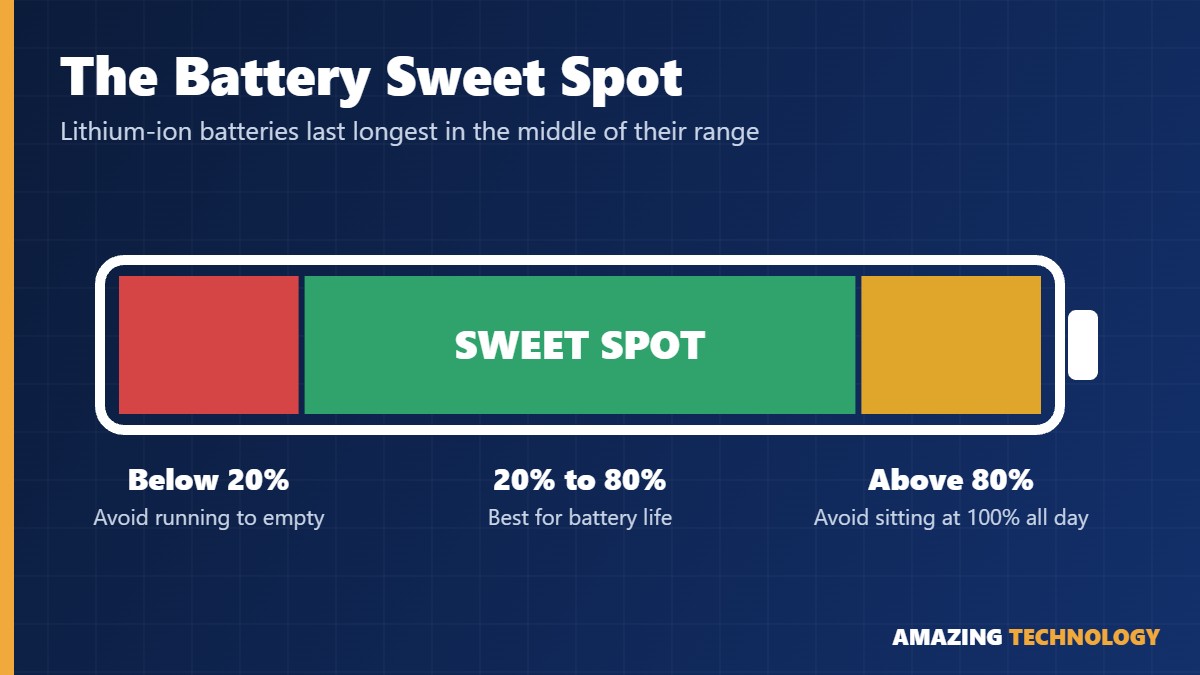
Lithium-ion batteries wear fastest when they sit at 100% for long periods or run all the way to 0%. Many laptops include a charge-limit or battery-care setting, often called Battery Conservation, Battery Health Charging or Optimized Battery Charging, that stops charging around 80% when you are plugged in all day. Turn it on if your laptop has it.
2. Let it breathe
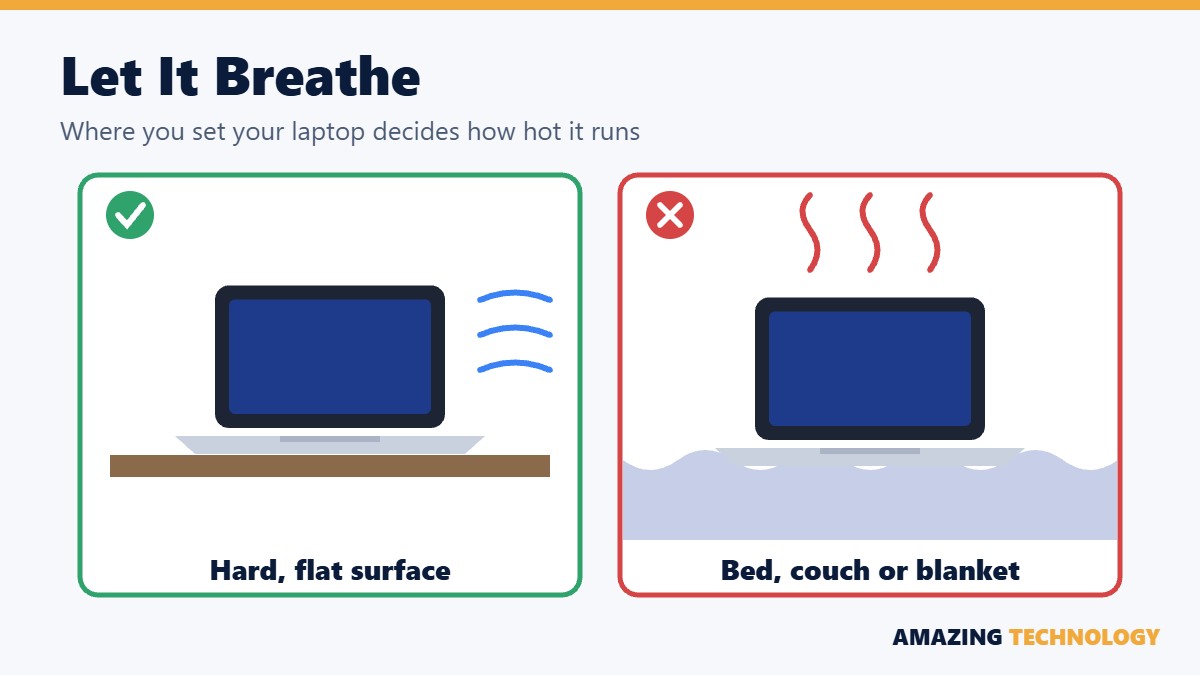
Use your laptop on a desk or table, not on a bed, pillow or blanket. Soft surfaces block the air vents and make the processor and battery run hot. A simple laptop stand or cooling pad is an inexpensive way to lower temperatures.
3. Clean the vents and keyboard
Every few months, shut the laptop down and use short bursts of compressed air on the vents and keyboard. Dust buildup is one of the most common reasons a laptop gets loud, hot and slow. Wipe the screen with a microfiber cloth only, never with paper towels or glass cleaner.
4. Keep software updated
Install Windows or macOS updates, driver updates and BIOS updates from your manufacturer. Updates fix security holes and often improve battery life and stability.
5. Remove clutter and startup programs
Uninstall programs you do not use and turn off apps that launch at startup. Fewer background programs means less heat, better battery life and a faster computer.
6. Protect it from power surges
Plug your charger into a surge protector, especially during storm season. A surge can damage the charger, the battery and the motherboard in one shot.
7. Upgrade instead of replace
Many laptops can be brought back to life for far less than the cost of a new one. Swapping an old hard drive for a solid-state drive (SSD), adding memory or replacing a worn battery can make a slow laptop feel new again.
8. Get a professional tune-up
After a few years, the thermal paste that cools the processor dries out and dust builds up inside where compressed air cannot reach. A professional cleaning and tune-up keeps temperatures down and catches small problems, such as a swelling battery or a failing drive, before they become expensive ones.
Quick Laptop Care Checklist
- Store at room temperature, never in a hot or freezing car
- Store at about 50% charge for long breaks
- Use a padded sleeve and keep the lid clear
- Shut down before putting it in a bag
- Use on hard, flat surfaces
- Turn on battery charge limits if available
- Clean vents every few months
- Keep software and drivers updated
- Use a surge protector
Need Help With Your Laptop?
Amazing Technology provides laptop cleaning, tune-ups, battery replacement, SSD upgrades, virus removal and repairs for homes and businesses across Newport News, Hampton, Williamsburg, Yorktown and all of Hampton Roads. Call or text 757-284-4920 or request service online, and we will help you keep your laptop running for years to come.